Once you have performed a full walk-forward analysis to find your optimal parameters, from time-to-time it may be necessary to re-optimize your strategy due to changing market conditions. The Quick Optimize feature is designed just for this purpose.
Given a test period, Quick Optimize will use in-sample data to optimize your strategy and generate a set of parameters (i.e. presets/.set file) that represent the best results for the given test period. These presets can then be loaded into Metatrader so you can use them for your automated trading.
The guide below demonstrates how to conduct a Quick Optimization:
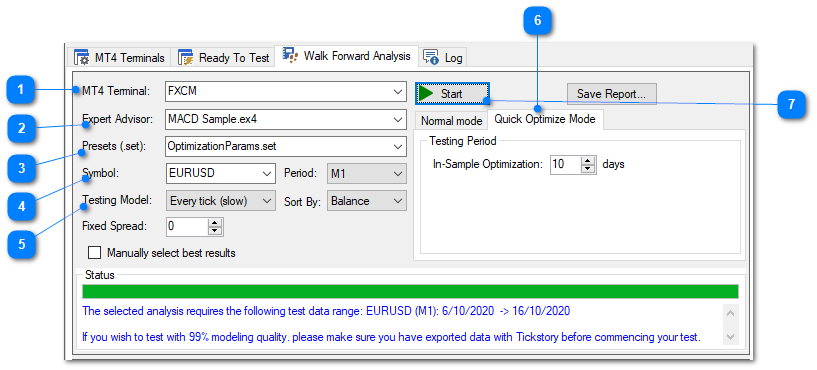
To use the Quick Optimize function, execute the following steps in the Walk-forward module:
1.Select the MT4 terminal you wish to test with.
2.Select your Expert Adviser strategy.
3.Select the optimization Preset (.set) file which contains the range of parameters that will be executed during your test. For the purposes of Quick Optimization, you should use the current presets that are using to trade with.
4.Select the Symbol you wish to test with and the Period/Time-frame.
5.Select the Testing Model*.
6.Select the Quick Optimize Mode tab and enter your In-sample optimization (it is 10 days in our example, this means that you will be optimizing for the last 10 days). Make sure your terminal has sufficient test data for this symbol for the given dates.
7.Press the Start button to begin the optimization. The system will automatically start Metatrader in the background and perform the configured test.
When the test is complete, the system will prompt you with the location of the new presets (.set) file that is automatically saved to your Metatrader Data folder. You can load this preset by going to Metatrader's Strategy Tester and selecting Expert Properties > Inputs > Load and then selecting the .set file that was generated. Once complete, your new strategy settings will be active.